Table of Contents
HELP on PLC Conversion assistant usage
Getting started
Description of PLC Conversion Assistant
PLC Conversion Assistant (PLC Conversion Assistant) is a computer aided cross platform PLC conversion tool that assists automation engineers by performing routine conversions automatically, and pointing out the errors they might need to manually be modified in the result files.
Through our research, we found that manual conversion has many routine conversion tasks that is not interesting and consumes unnecessary time and effort. With PLC Conversion Assistant, we have found that many users saved up to 75% of time in conversion, and they could have plenty of time to test the performance and safety.
Being a web application, PLC Conversion Assistant produces the result immediately, and the interface is intuitive thanks to the use of Wizard feature. There is no training required and you can pay online with credit card, so that you can focus on the result not on how to use.
User account
Account creation and update
There are a couple of ways to create your account. From the product page (PLC Conversion Assistant), click “Start Conversion Now” button.
Another way to create the account is from PLC Converter Assistant Login Page, by clicking on “Not registered? Sign up here” link the below screen is displayed:

When you are prompted, please enter “Password” again to confirm and click signup button. This will send you a confirmation mail. Please check your mailbox and confirm your sign up by clicking the confirm button in the mail. You have 24 hours to confirm the registration.
Lite account
With Lite account, you can convert a PLC application up to 1,000 instructions by paying €2.5 / instruction. For more than 1,000 instructions, you are required to upgrade to PRO account that gives the ability of converting the applications without any limitation. With the result, you can have access to the knowledgebase to learn details of the issues that help to further manually modify the result. However, you do not have access to the project repository or share the conversion result with others as a Lite account holder.
Pro account
With PRO account, you can convert PLC applications without the constraint of number of instructions. With one time setup fee of €2,000, each conversion is fixed fee of €2,000, and you can enjoy all the benefit of PLC Conversion Assistant LITE plus project repository and project sharing with others.
Managing projects
This feature is provided only for Pro users.
A project is a structured way to organize user's applications. A project (named default) is created by default once the user sign-up on the platform. By default, all user's applications are in the default project. The user can after doing the conversion move his application to a specific project (i.e. it will be explained later how to move an application from a project to another one).
List of projects
Pro users can have access to their projects list and details by clicking on Projects item in the left sidebar.

The projects page shows the information related to the applications that are associated to each project.

For each project, the presented information are described as follows:
- Application name that the user defined in the conversion wizard
- Status of the application, if it is open means that the conversion is not yet processed and that the user stoped on the estimate step, otherwise the status is closed
- Conversion date is the date of the conversion if the status is closed otherwise it is empty
- PLC Source is the name of the source PLC of the conversion
- PLC Destination is the name of the destination PLC of the conversion
- Actions are the actions that the user can do within the project. These are edit (pencil icon) and delete (trash icon). A project can not be deleted by clicking on the item of the table if it contains more than one application.
List of applications
To show the list of applications inside a specific project, you have to click on that project in the Project Name column (Projects page).

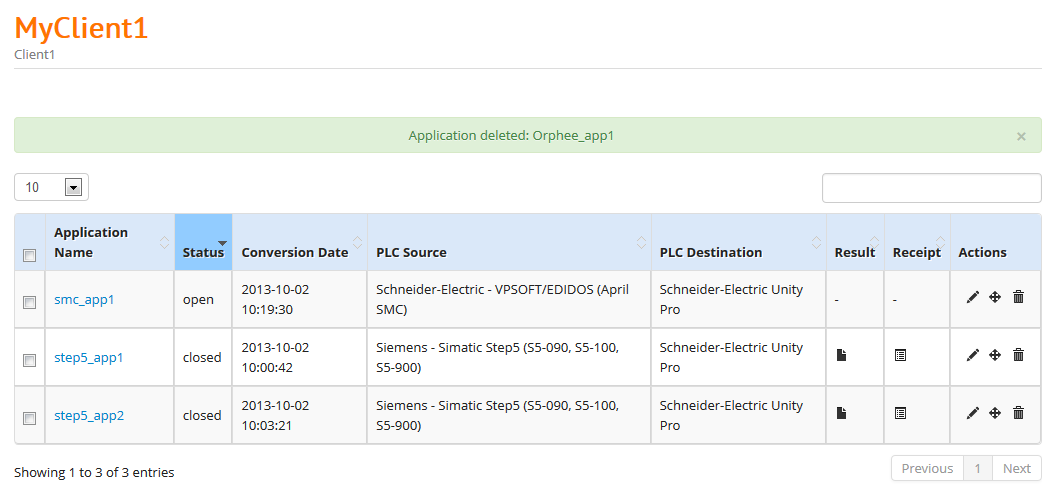
For example, the table bellow shows the list of applications in the project MyClient1.
The displayed information are :
- Application name
- Status (Open or closed)
- Conversion date
- PLC source
- PLC destination
- Result is the link to the result conversion file. There is no result if the status is open.
- Receipt is a link to the invoice for the conversion. If the status is open there is no invoice.
- Actions presents the actions that can be applied within the application. These are edit (pencil icon), move (losange icon), delete (trash icon).
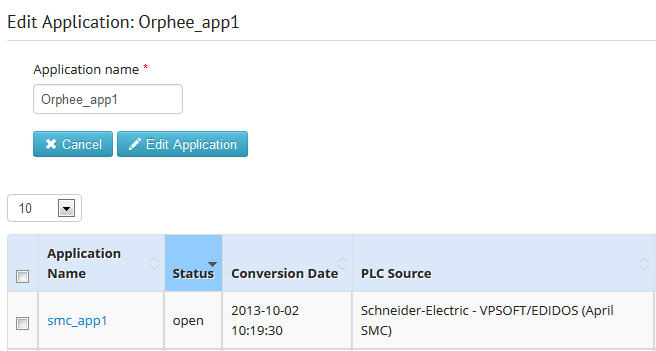
- Edit action allows updating the name of the application.
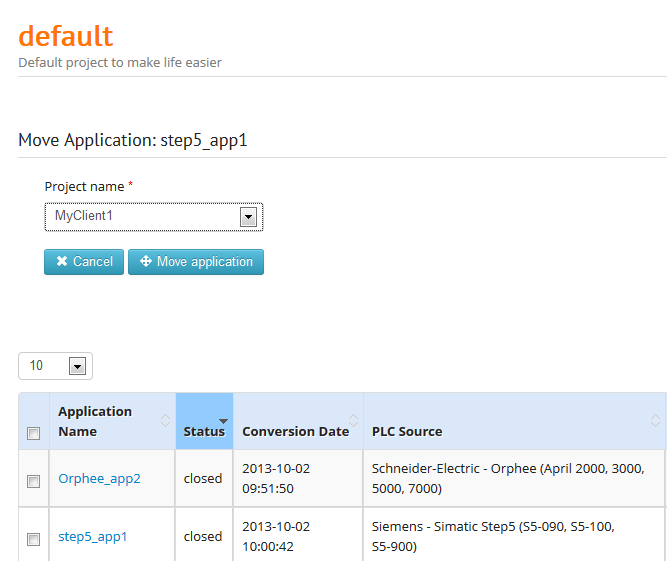
- Move action allows moving the application from its original project to another project. In the following figure, we moved the application Step5_app1 from default project to MyClient1 project.
- Delete action is used to delete definitely an application.


Add or edit a project
Adding project
To add a project go to Projects page by clicking on Projects in the left sidebar, and click on the button Add project.

You need to fill in the name (i.e. the name must be unique) and description of the project and then click on Add project in the bottom.
Editing project
To edit a project, from Projects page select the project to edit and then in the column Actions click on the pencil icon. You can update the name (the name should be unique) or/and the description of the project.

Managing Licenses
A license is used for conversion process. You can buy a license before doing the conversion (Pro account only) or during the conversion time (all users). Each license is identified by a unique key that consists in 16 characters (e.g. ISDSFMQBAMEYVVO).
List of licenses (Pro account only)
To visualize the list of the purchased licenses, you should click on Tools ⇒ Licenses on the left sidebar.

The presented information are detailed as follow:
- License is the key of the license
- Type is used for PLC Conversion Assistant Purchase
- Status value can be used or available
- Purchase date is the date of purchasing the license
- Used date is the date in which the license is consumed, nothing if the license is available
- Application is the application name for which the license was consumed. It links the application result page.
Purchasing new license
To buy new license before starting the conversion (Pro account only), go to the Licenses page (Tools ⇒ Licenses) and click on the button Add license. Follow the instructions provided to purchase the license. Then you will see a new license added in the licenses list.
You can also purchase the license during the conversion time if you have not an unused one. For Lite users, the only option is to purchase a license during conversion process. In all cases an email will be sent to users with attached invoice document.
Obtaining an invoice
To have access to your invoice, you can click on the application name that is in the licenses page. A report page will be displayed with all information related to the conversion. The invoice is available in the invoice Tab. You can download, print and send by email your invoice.

Managing Conversions
Step by Step to do a conversion
Conversion Tool content step, each step are important.
- Give application name
- Choose Source PLC and Destination PLC
- Upload your files
- → Result Estimation
- Click on Proced
- Conversion effected
To make a conversion, there is sub-menu Tools on the left-menu.
When you click on, you must choose PLC Conversion Assistant Pro.
Now in this part you must choose Application Name and PLC Source.
PLC Destination Source is according with PLC Source.
Choose PLC Destination and click on Foward.

Second part of conversion, you must upload your file(s).
We recommend to upload all section, Required file and Optional file.
You can return to first part of conversion by clicking backward.
After these procedures, cliked on Estimate cost.

After some minutes, your files are upload and you can see estimation report.
Estimation Content
In this page estimate, there are tabs Source Information and Key Information.
- Source Information:
→ General Information
Contains general information of file upload

→ Conversion detail examples
Contains three examples of each categories info and warning and error. We can see total per categories

→ Cost Estimate
Contains summary of invoice

- Key Information:
→ General key information
Content some specific counters that the application has.
→ Specific features
Contains some specific features
In second column there are link to knowledge base. When you click on this popup containing description of specific features.

If you have purchased in advance your license you can write license key.
Click on proceed button for start conversion.
Result Content
When conversion is finish you can see result.
In this page result, there are tabs Overview, Detail, Configuration, Invoice and Appendix.
- Overview: Four or five parts Source Destination Key information
→ Source: Source information by your application
→ Destination: Destination information by generated application
→ Important Note: with some application before importing the result file to the destination development environment it's necessary perform some changement. List of messages you helps for this.
In last column there are link to knowledge base. When you click on this popup containing description of message.
→ Key information: Summary of key counter information on your application

- Detail:
In this tabs we can see all messages generated during conversion. There are three messages types:
→ Info
→ Warning
→ Error
In third column there are link to knowledge base. When you click on this popup containing description of message.

- Configuration:
→ Hardware: this section is hardware configuration detail of your application

- Invoice:
We can see your invoice for your conversion. You can download this invoice in PDF with clicking button Invoice/Receipt.

- Appendix:
In this tabs there are general informations on path of conversion.

In bottom page you can click on button result for download result of conversion.